
How to Upgrade PHP in Practice: Check, Switch, Verify, and Hide the Version
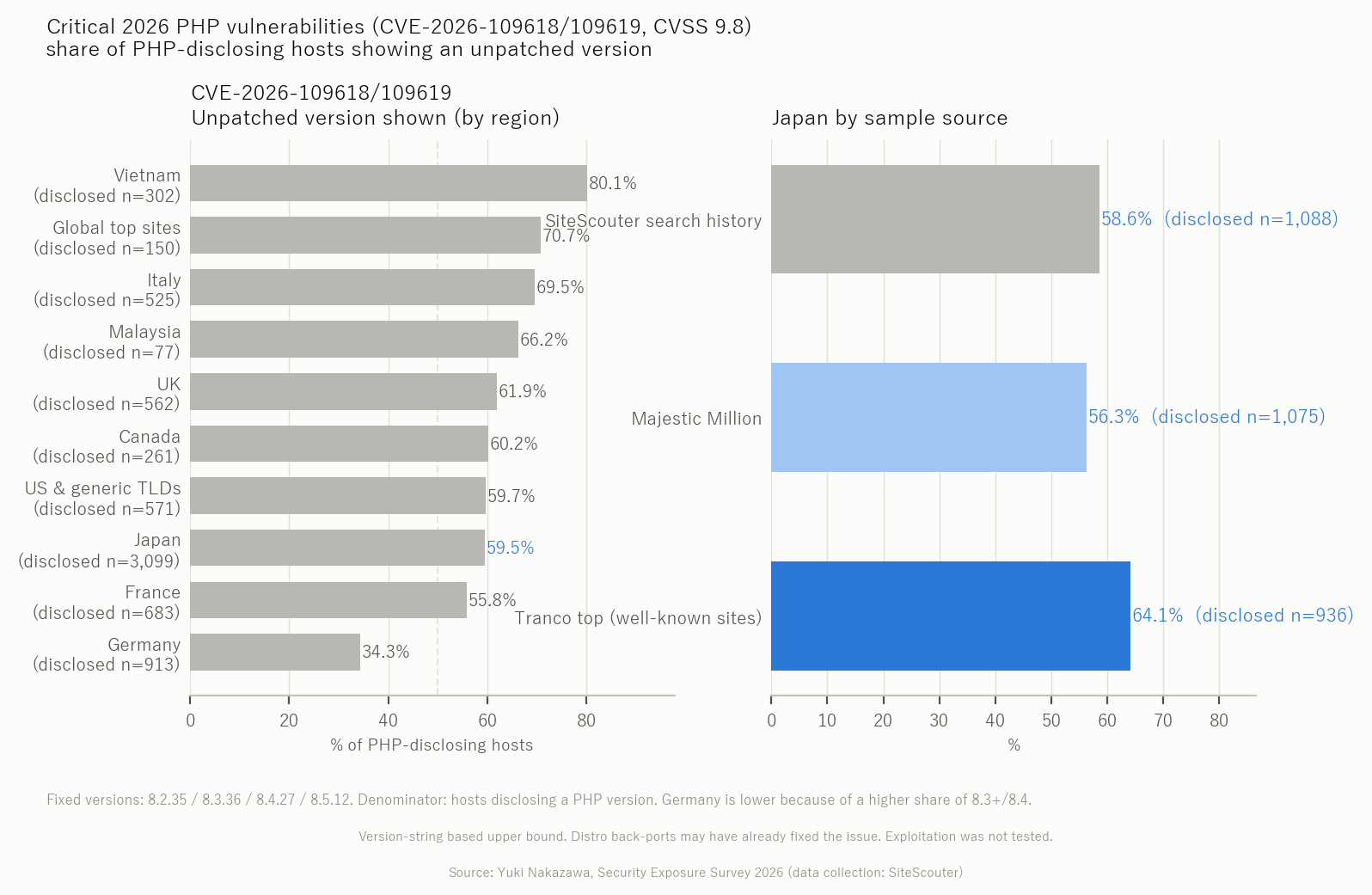
A critical PHP vulnerability rated CVSS 9.8 was published in 2026. Among Japanese sites whose servers disclose a PHP version, 59.5% still show a version that has not been updated to a fixed release (Yuki Nakazawa, Security Exposure Survey 2026; data collected by Site Scouter). This article walks through the practical steps: how to find out which PHP version your server is running, how to switch versions on shared hosting, how to verify the site afterwards, and finally how to stop announcing the version string to the outside world.
Also published on the author's blog nkzw.jp and Egosaru.
First, find your current PHP version
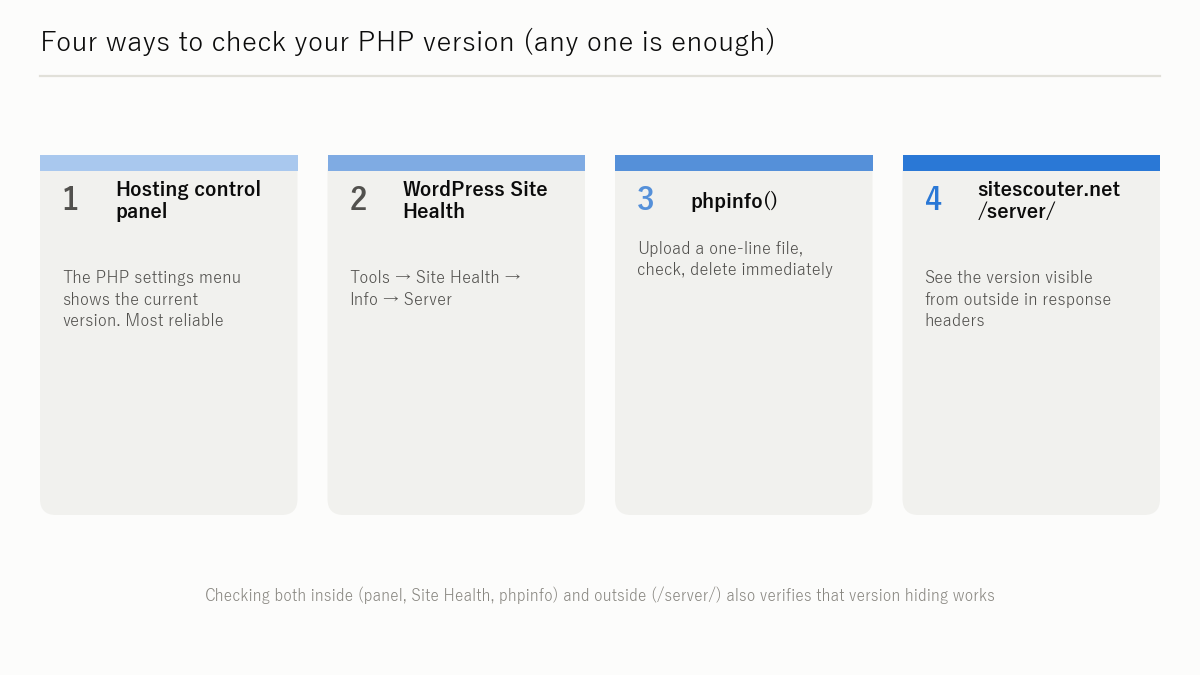
The first step is knowing what is actually running. There are several ways to check; any one of them is enough.
From your hosting control panel
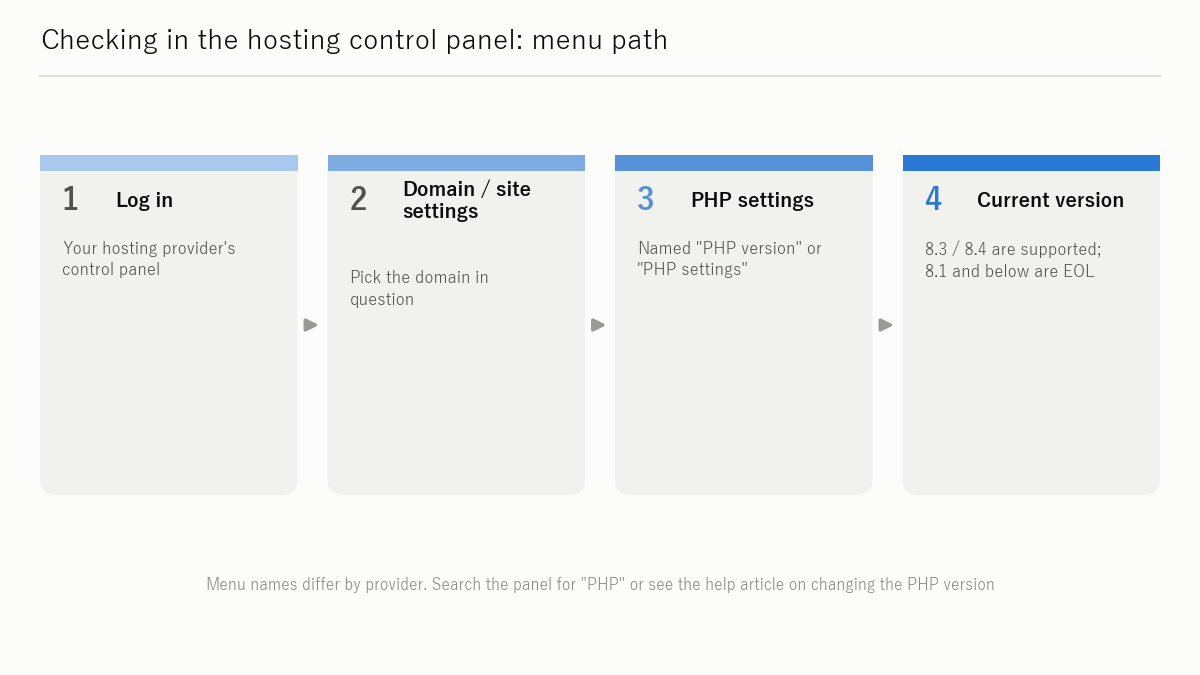
Most shared-hosting providers have a menu equivalent to "PHP settings" or "PHP version" in their control panel. Log in, open the settings for your domain or site, and the currently applied PHP version is displayed. Menu names and locations differ by provider, so consult your provider's current manual.
From WordPress "Site Health"
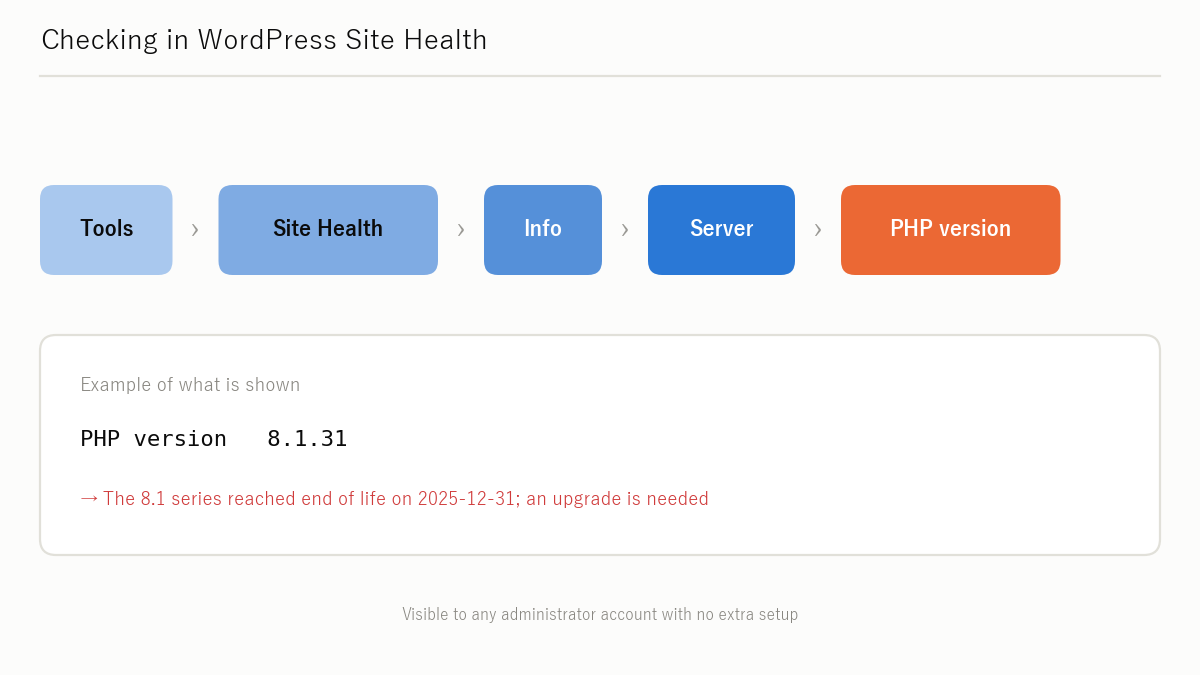
If you run WordPress, open Tools → Site Health → Info in the admin area. The "Server" section shows the current PHP version. No plugin is needed, which makes this the easiest route for WordPress operators.
With phpinfo() (do not leave it online)
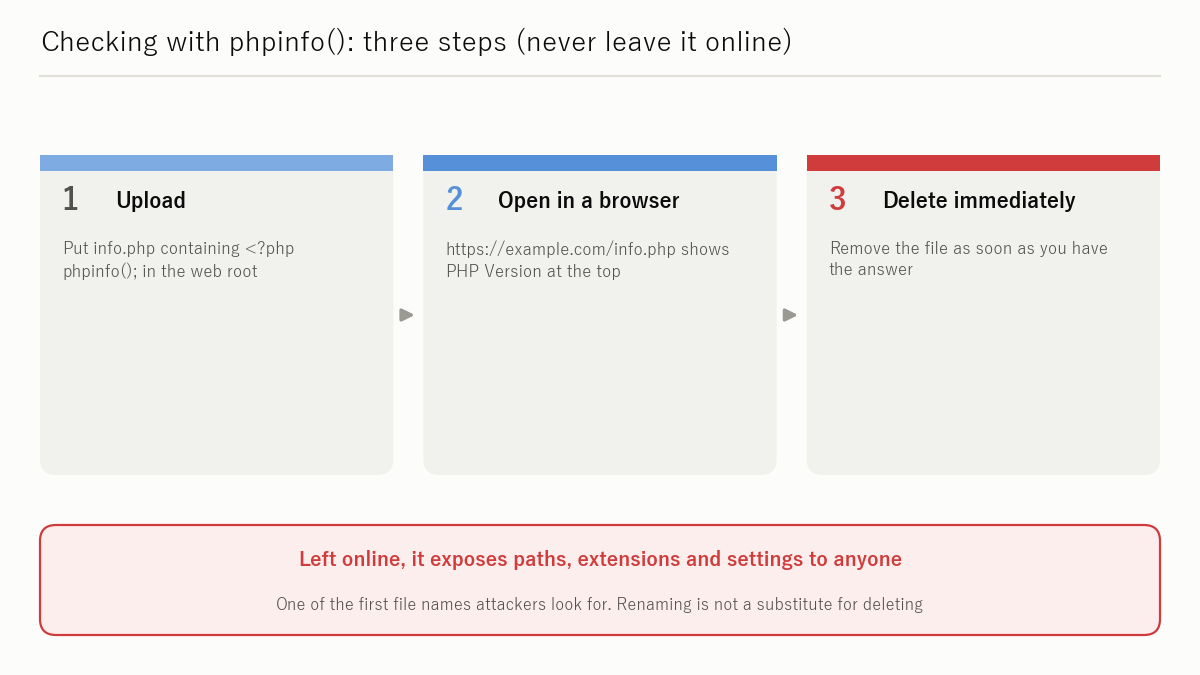
Upload a PHP file containing only <?php phpinfo(); ?> and open it in a browser to see detailed environment information including the PHP version.
Delete the file as soon as you have checked. The phpinfo() output contains version numbers, configuration values and the list of installed modules — exactly what an attacker can use. Leaving it on the web hands over a map of your server. Treat it as a temporary file for a one-off check and remove it immediately.
With sitescouter.net's /server/ to see the "externally visible" version
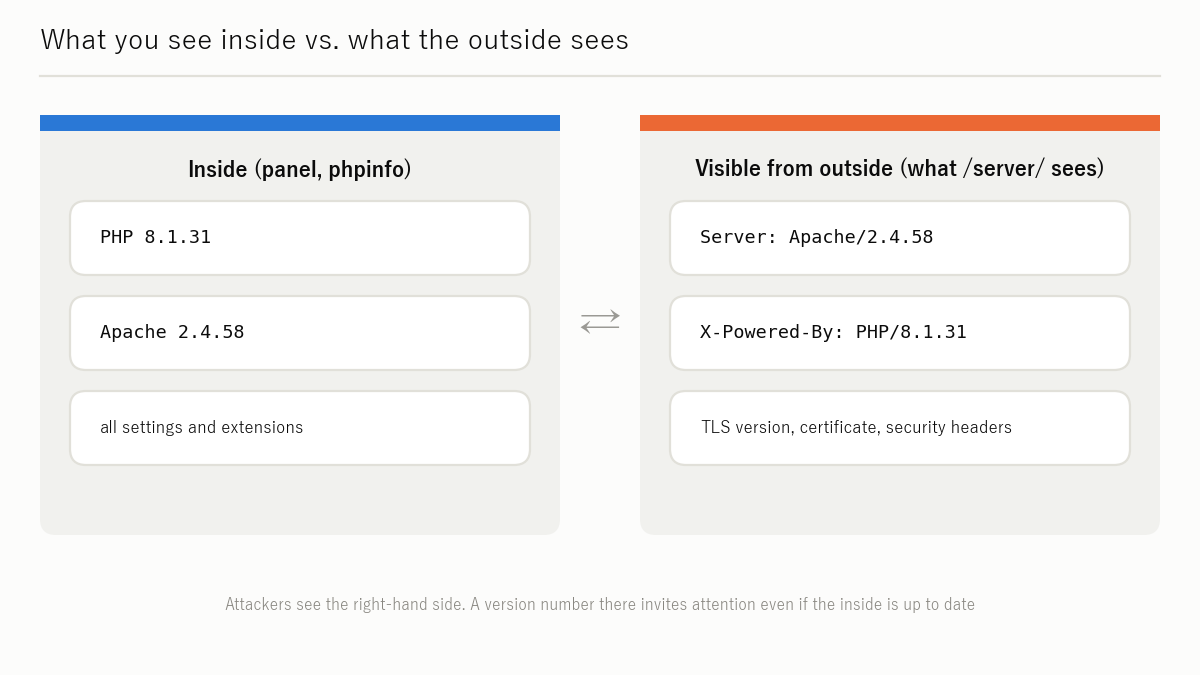
The methods above show what the server sees from the inside. To see what your server actually tells visitors, use the Site Scouter server information check (/server/). Enter a URL and it reports whether a PHP version appears in the Server or X-Powered-By headers — a third-party view of whether "PHP 8.1.x" is visible from outside.
PHP support schedule and the critical 2026 vulnerability
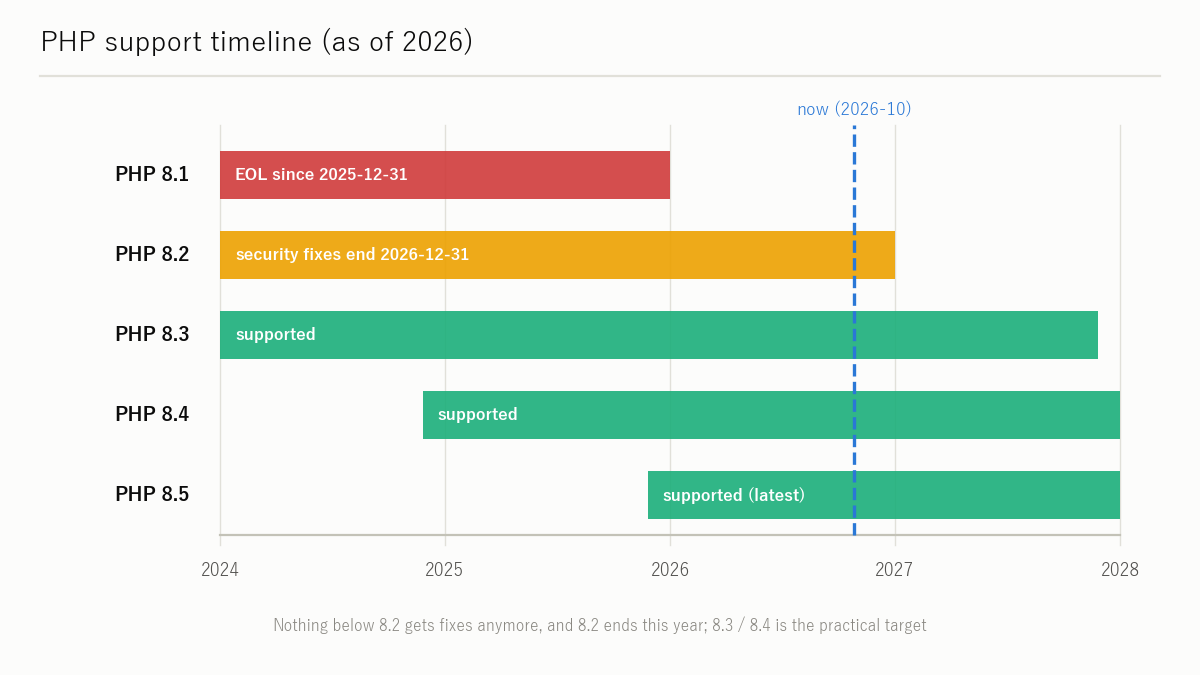
Support schedule
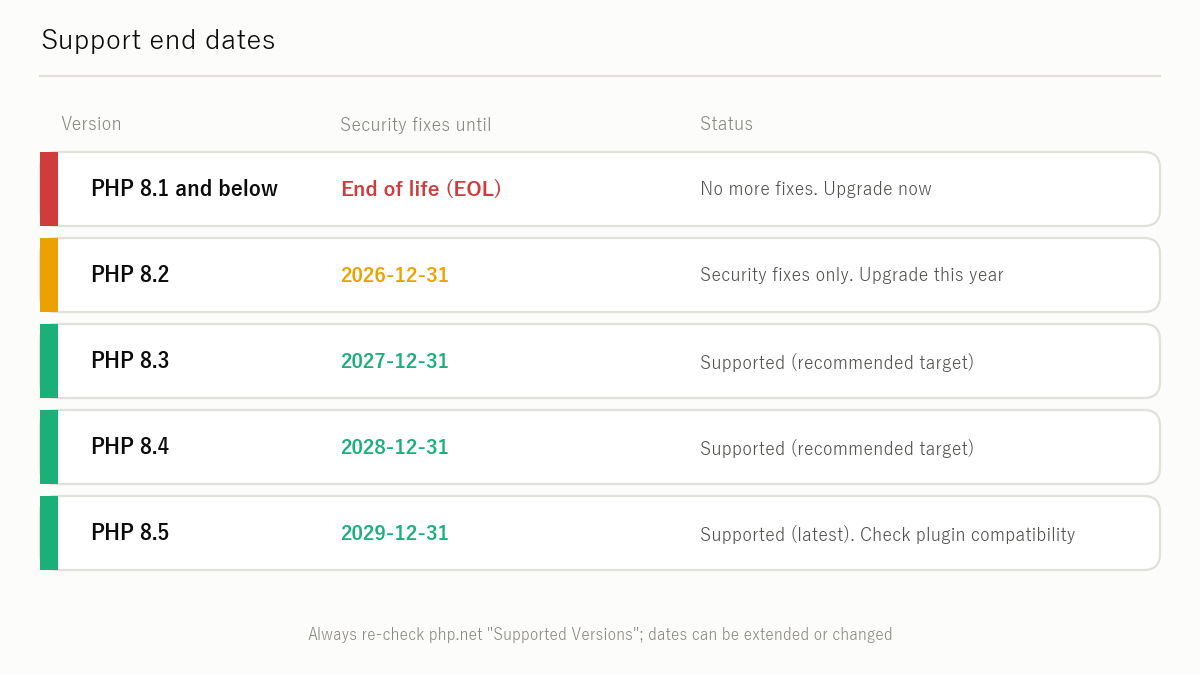
The support status published by php.net (checked 27 October 2026) is summarised below. Dates can be extended or changed, so re-confirm them at php.net/supported-versions.php before acting.
| Version | Status | End of active support | End of security fixes |
|---|---|---|---|
| 8.5 | Supported (latest) | 2027-12-31 | 2029-12-31 |
| 8.4 | Supported | 2026-12-31 | 2028-12-31 |
| 8.3 | Security fixes only | 2025-12-31 | 2027-12-31 |
| 8.2 | Security fixes only | 2024-12-31 | 2026-12-31 |
| 8.1 and older | End of life (EOL) | — | Ended |
| 7.x / 5.x | End of life (EOL) | — | Ended |
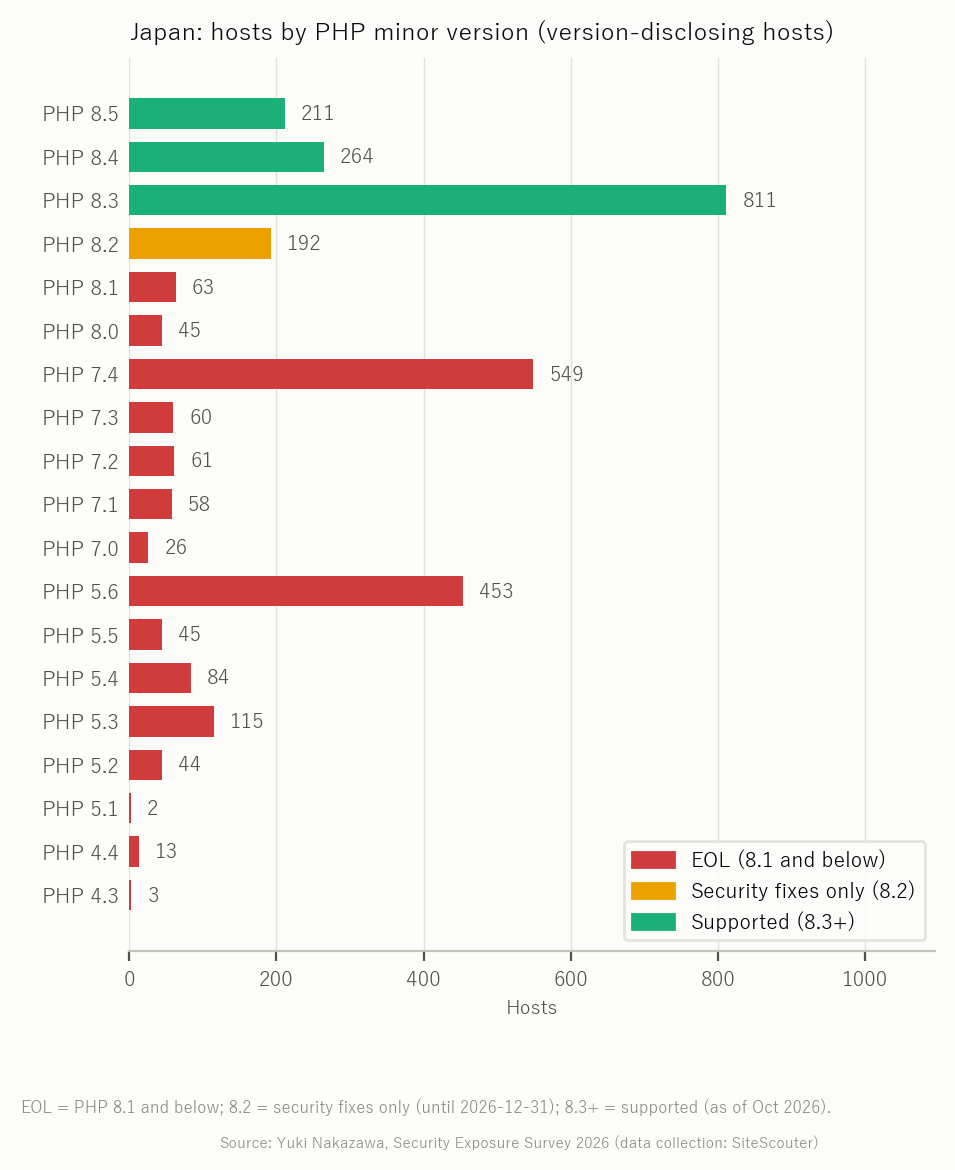
Security fixes for 8.2 also end at the close of 2026. If you are on 8.2 today, you need to move to 8.3 or later within the next year. 8.1 and older no longer receive patches at all and need attention now.
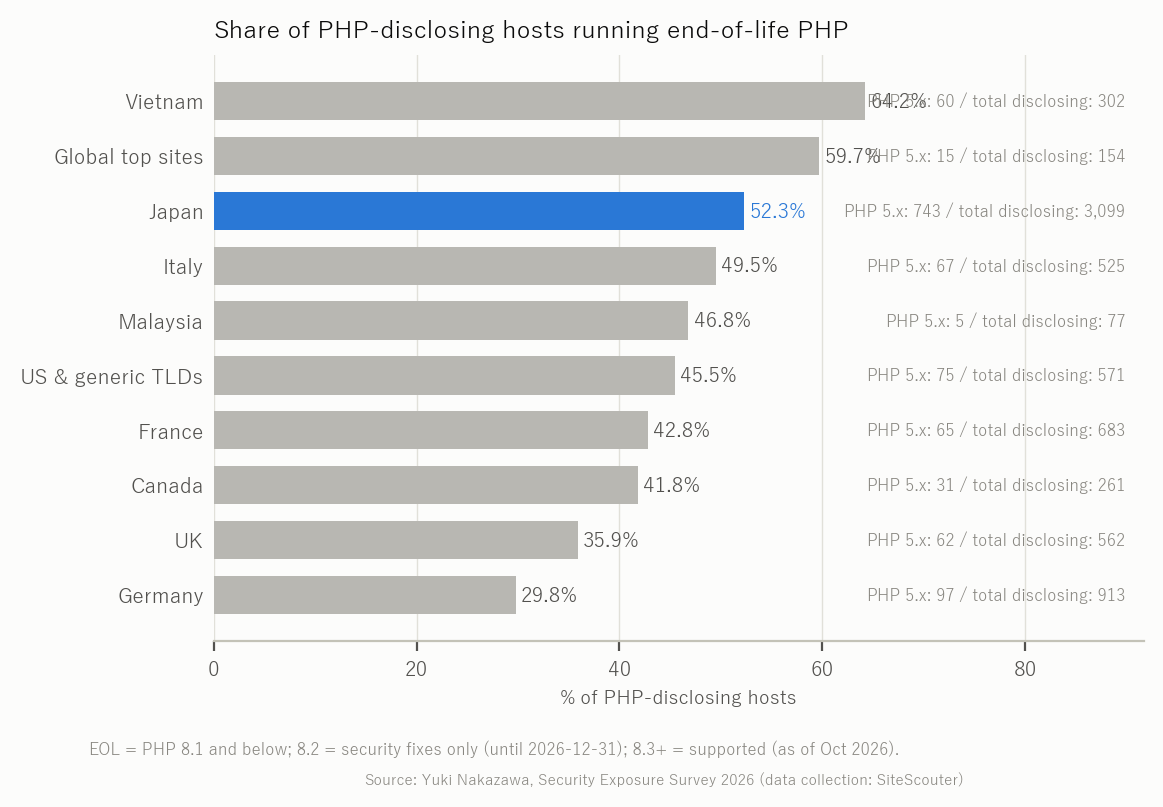
Meanwhile, 52.3% of Japanese sites that disclose a PHP version show an end-of-life version (Yuki Nakazawa, Security Exposure Survey 2026; data collected by Site Scouter). When a vulnerability is found in an EOL version, no fix is released.
The critical 2026 vulnerability and the fixed versions
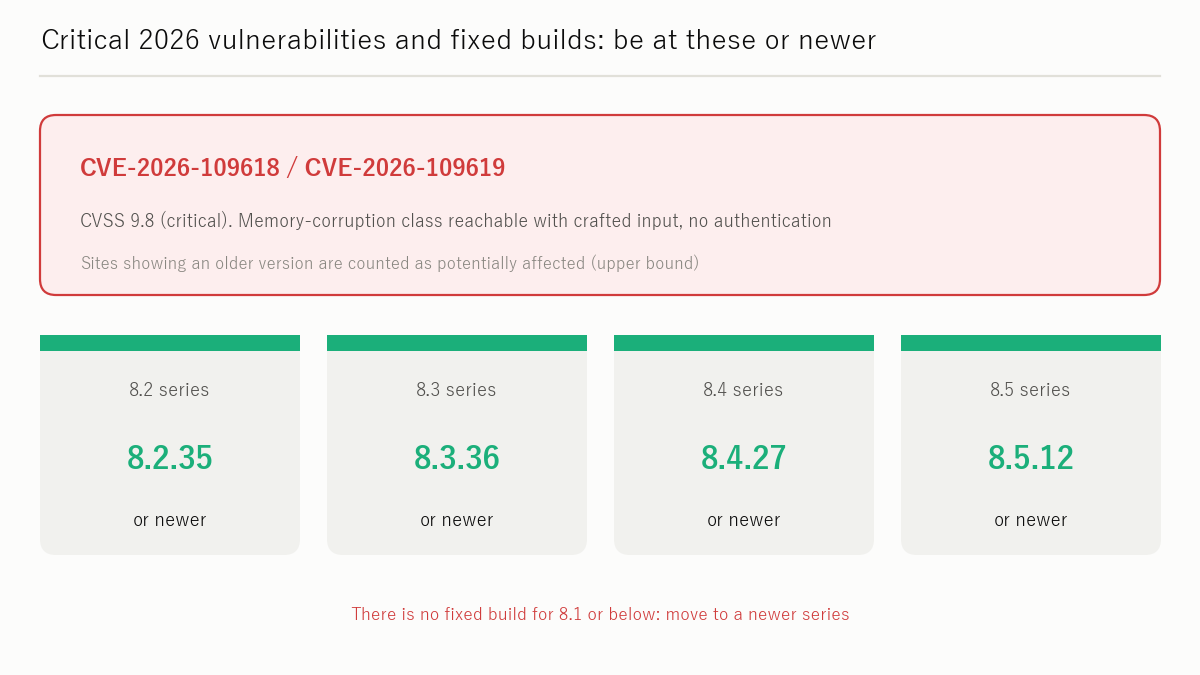
In 2026, vulnerabilities rated CVSS 9.8 (Critical) were published for PHP.
| CVE | CVSS | Summary | Lowest version containing the fix |
|---|---|---|---|
| CVE-2026-109618 | 9.8 | Use-after-free. Caused by a longjmp on out-of-memory; memory can bleed between requests | 8.2.35 / 8.3.36 / 8.4.27 / 8.5.12 |
| CVE-2026-109619 | 9.8 | Related vulnerability. Memory from a privileged request can flow into another user's request | 8.2.35 / 8.3.36 / 8.4.27 / 8.5.12 |
If exploited, these can mix other users' session data into a request, leading to privilege escalation or information leakage and, in the worst case, a web shell on the server. If your version is below 8.2.35 / 8.3.36 / 8.4.27 / 8.5.12, update promptly.
The upgrade procedure
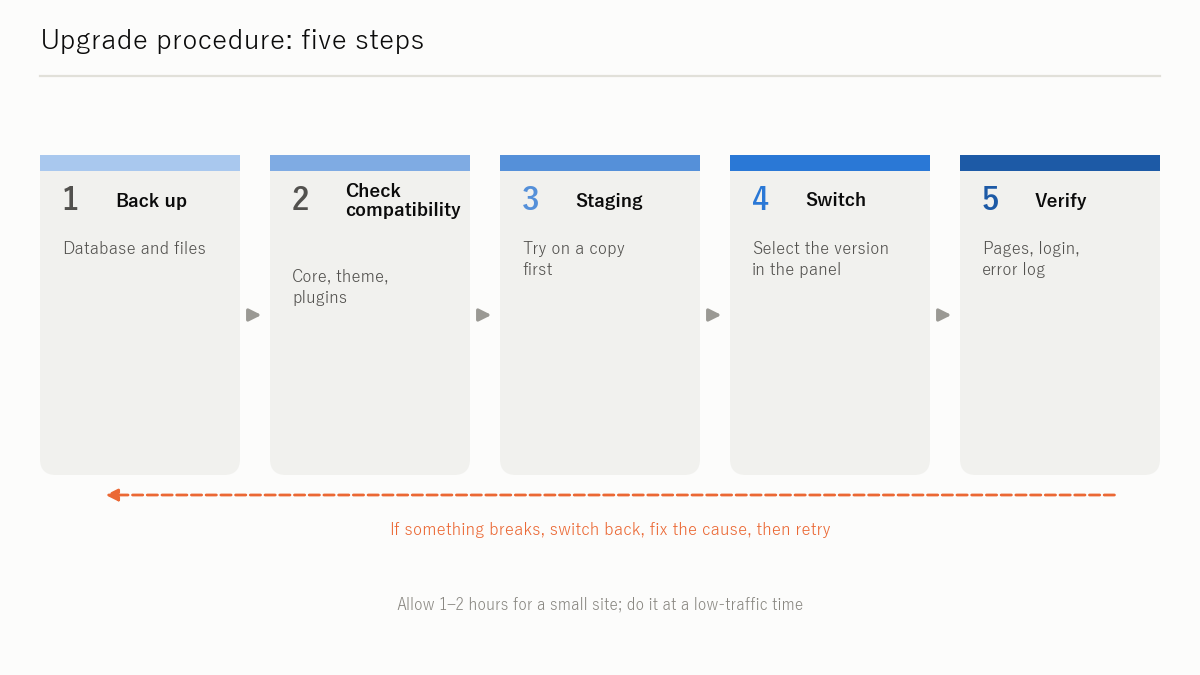
Step 1: Back up before switching
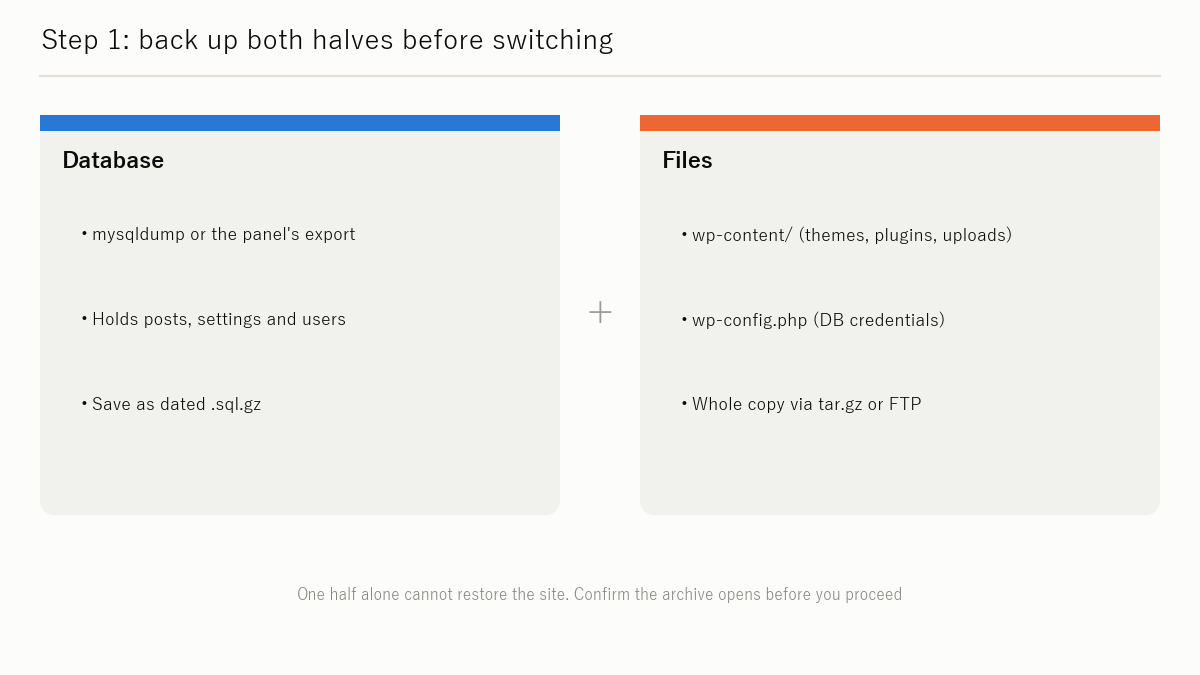
A version change can alter PHP behaviour and take a site down. Always take these backups first.
- Database backup: a MySQL / MariaDB dump (phpMyAdmin "Export", or your control panel's backup feature)
- File backup: for WordPress, everything under
wp-content/(themes, plugins, uploads) pluswp-config.php
Step 2: Check WordPress, theme and plugin compatibility
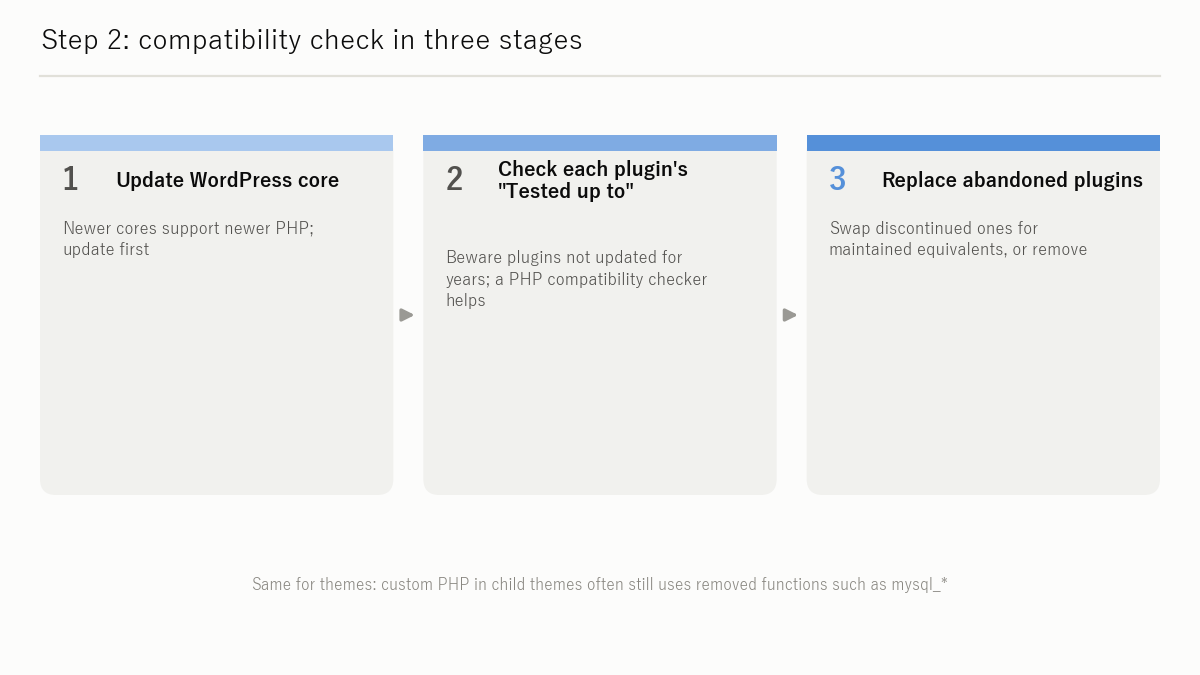
When moving across a major version (7.x → 8.x), confirm in advance that WordPress core, your theme and every installed plugin support the target PHP version.
- Update WordPress core first via Dashboard → Updates
- For each plugin, check the "Tested up to" field on its WordPress.org page or the developer's support information
- Consider replacing old, unmaintained plugins
Step 3: Test on a staging environment (recommended)
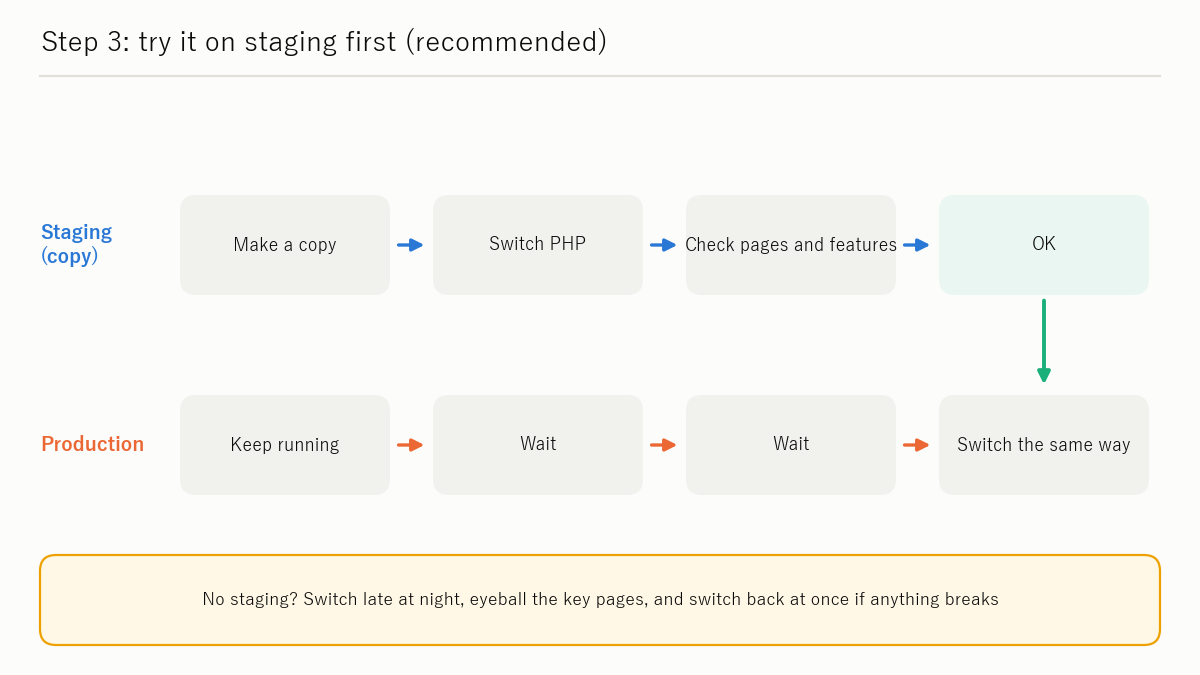
Before switching the live site, test the new PHP version on a staging copy. Most major hosts provide a staging feature or a subdomain you can use.
If staging is not available, the practical alternative is to switch during a low-traffic window (late at night) and immediately eyeball the key pages.
Step 4: Switch the PHP version in the control panel
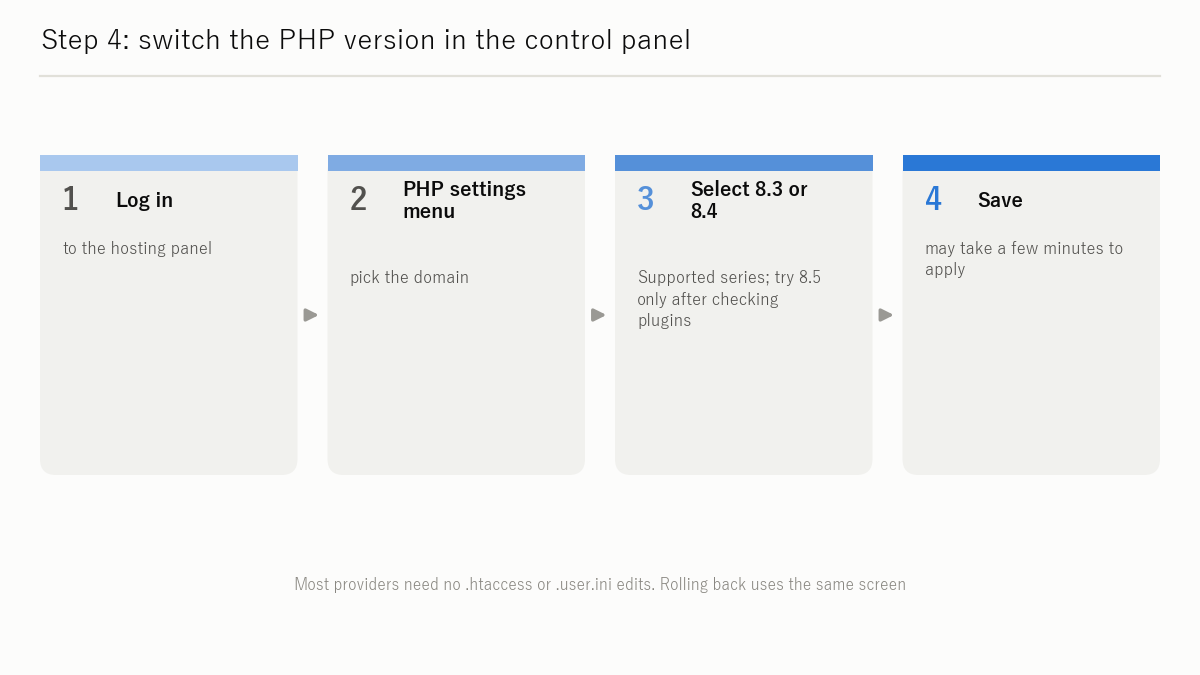
Major Japanese shared hosts (Sakura, Xserver, Lolipop, ConoHa WING, mixhost and others) provide a control-panel menu for switching PHP versions. The typical flow is:
- Log in to the hosting control panel
- Open the domain or site settings and look for a menu equivalent to "PHP settings", "PHP version" or "Language version"
- Select 8.3 or 8.4 (the latest stable version your host offers) and save / apply
- It may take a few minutes for the change to propagate
Menu names and steps differ by provider. Always follow your provider's official manual, which also lists the versions available.
Step 5: Verify the site and check the error log
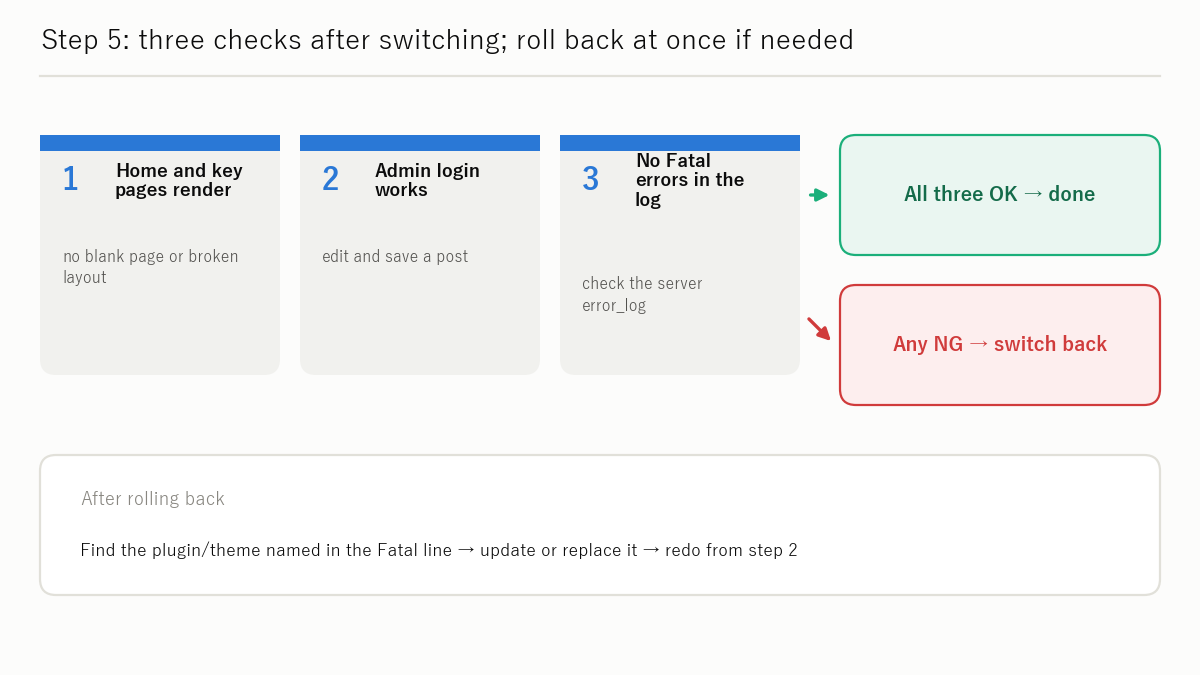
After switching, confirm the following.
- The top page and key pages render correctly in a browser
- You can log in to the WordPress admin area
- Check the PHP error log via the control panel's log feature or the path set in
error_log. If you seePHP Fatal errororPHP Deprecated, the plugin or theme concerned needs attention - If something breaks, switch back to the previous version right away (most panels allow an instant revert), find the cause, then try again
Hide the version string (after updating)
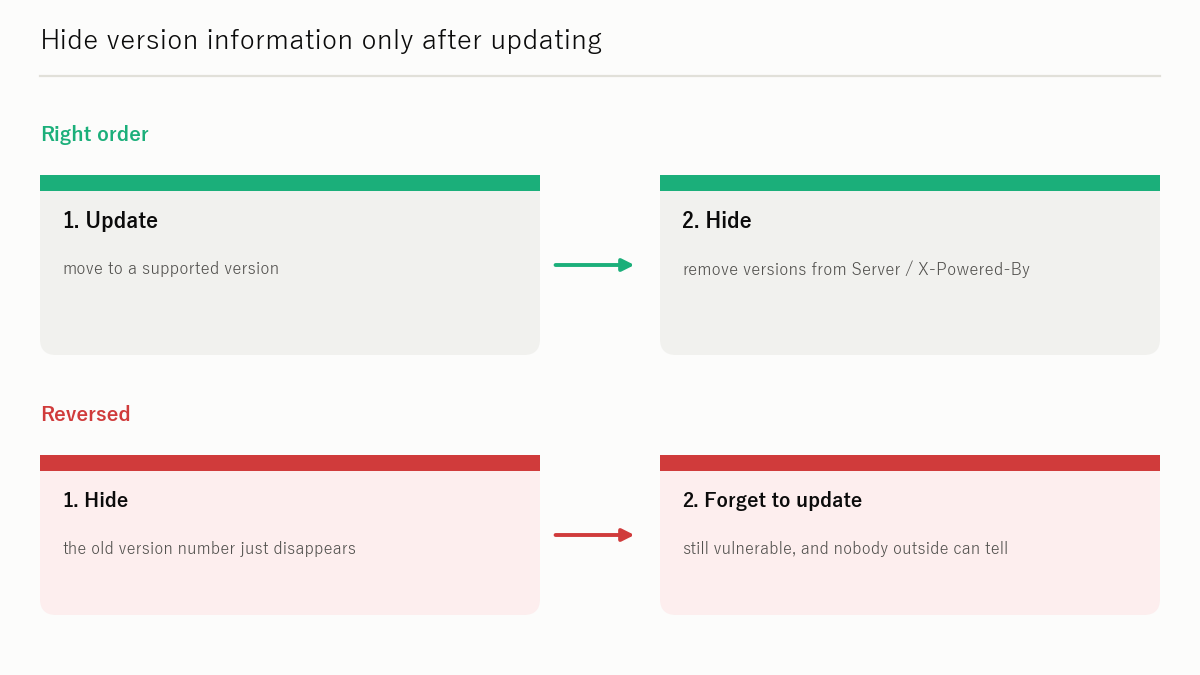
PHP and web servers can be configured not to announce their version numbers. This is "version hiding" — but hiding the version does not remove the vulnerability. Finish the upgrade first, then apply this as a secondary measure.
Done in the wrong order, you end up with "an old version with the number hidden": harder to spot, same actual risk.
Remove the PHP version header (expose_php)
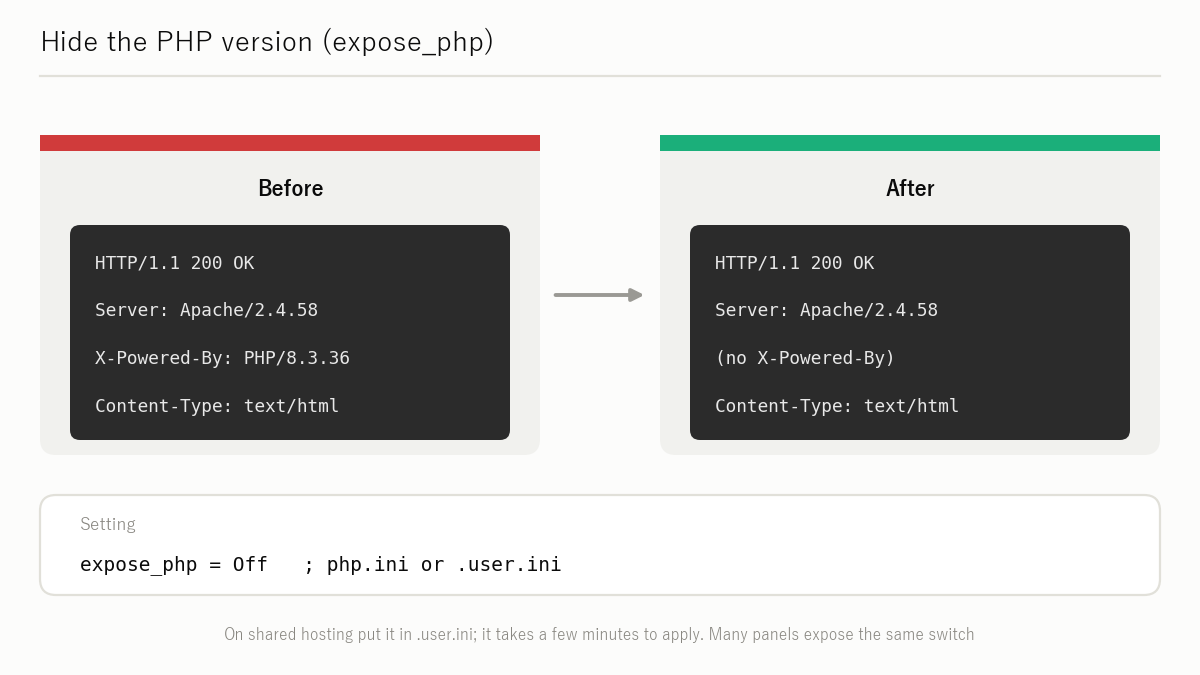
Add the following to php.ini or .htaccess:
; add to php.ini
expose_php = Off
If your host does not let you edit php.ini directly, put the same setting in .user.ini (supported by most shared hosts). After reloading (or waiting for the change to apply), confirm with Site Scouter /server/ that the PHP version has disappeared from the X-Powered-By header.
Minimise Apache's Server header
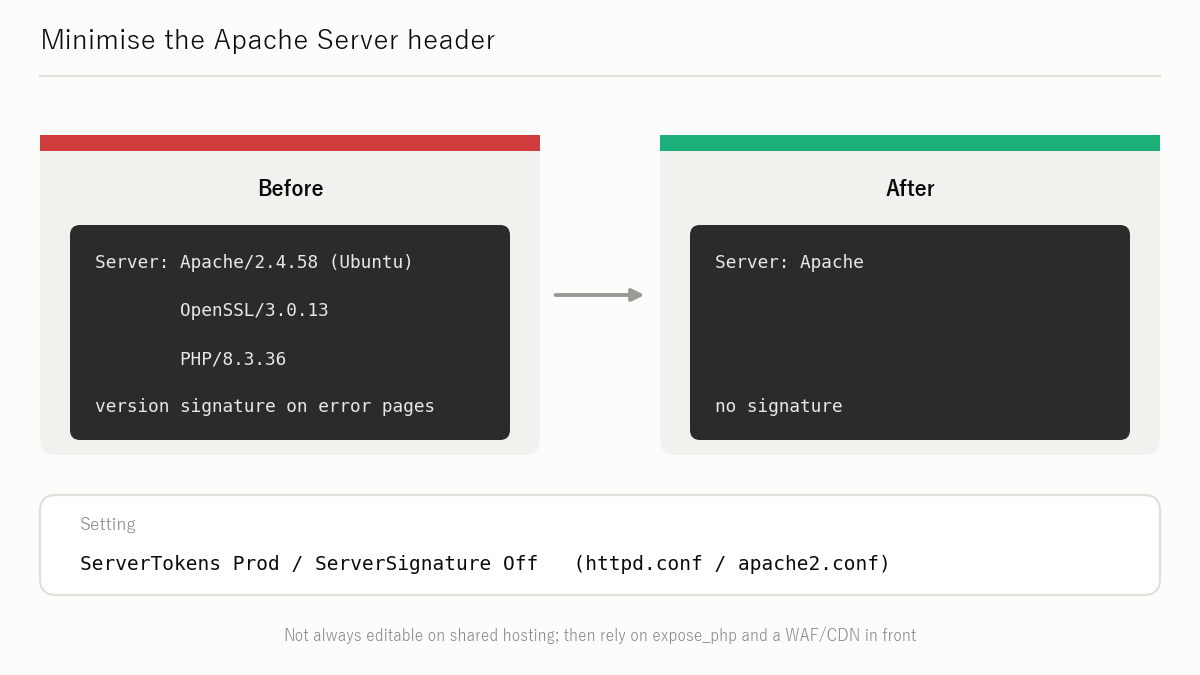
Where you control Apache (VPS or dedicated servers), set the following in httpd.conf or apache2.conf:
ServerTokens Prod
ServerSignature Off
ServerTokens Prod returns only Server: Apache, omitting the version. ServerSignature Off removes the server line from error pages.
Minimise nginx's Server header
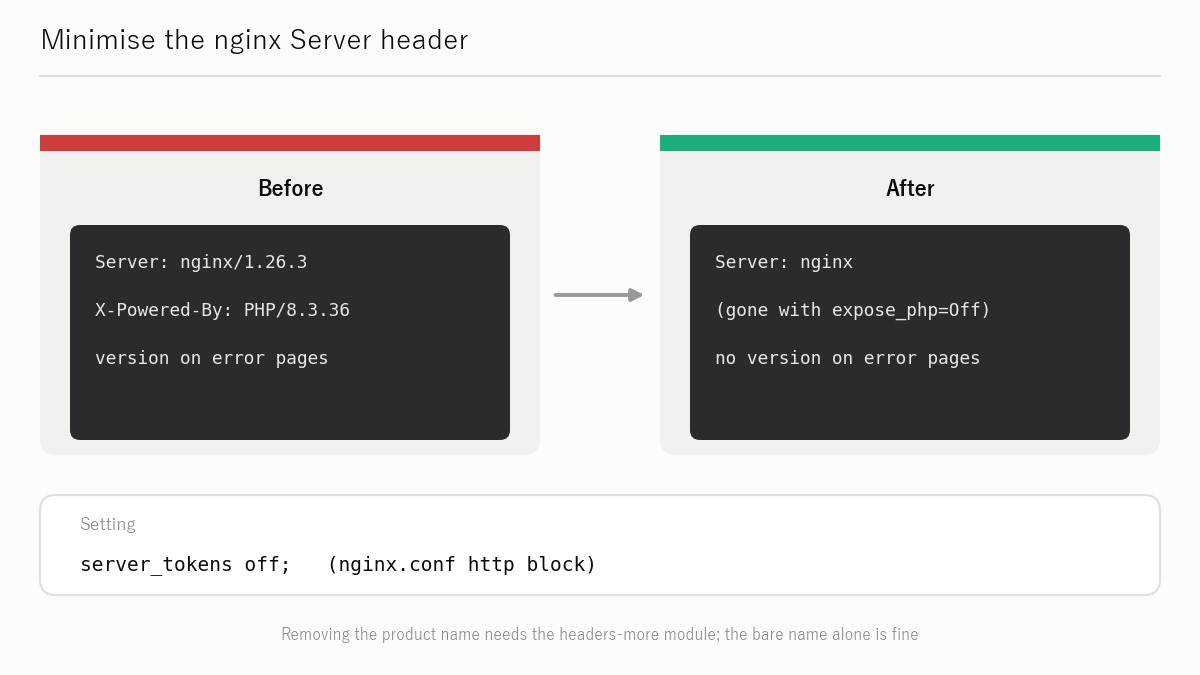
For nginx, add this to the http block of nginx.conf:
server_tokens off;
nginx then returns only Server: nginx without the version.
Final check after the changes
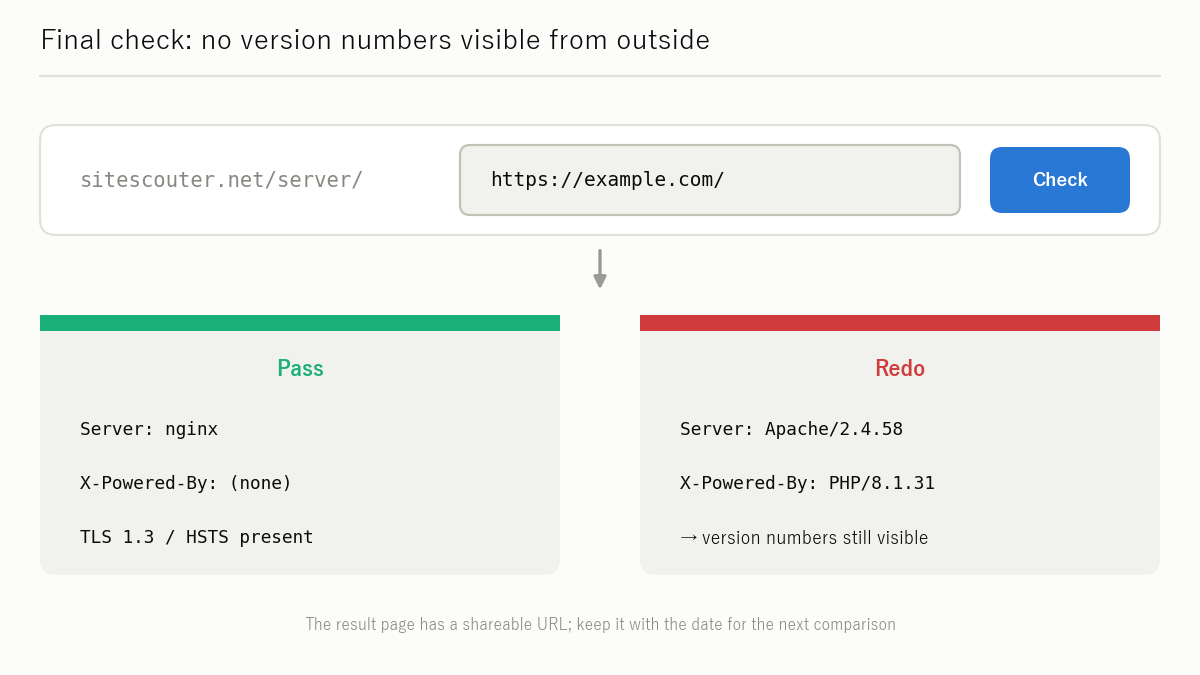
Once the upgrade and the version-hiding settings are done, look up your site on the Site Scouter server information check (/server/). If the X-Powered-By and Server headers no longer show version numbers, the version is invisible from outside.
Checklist
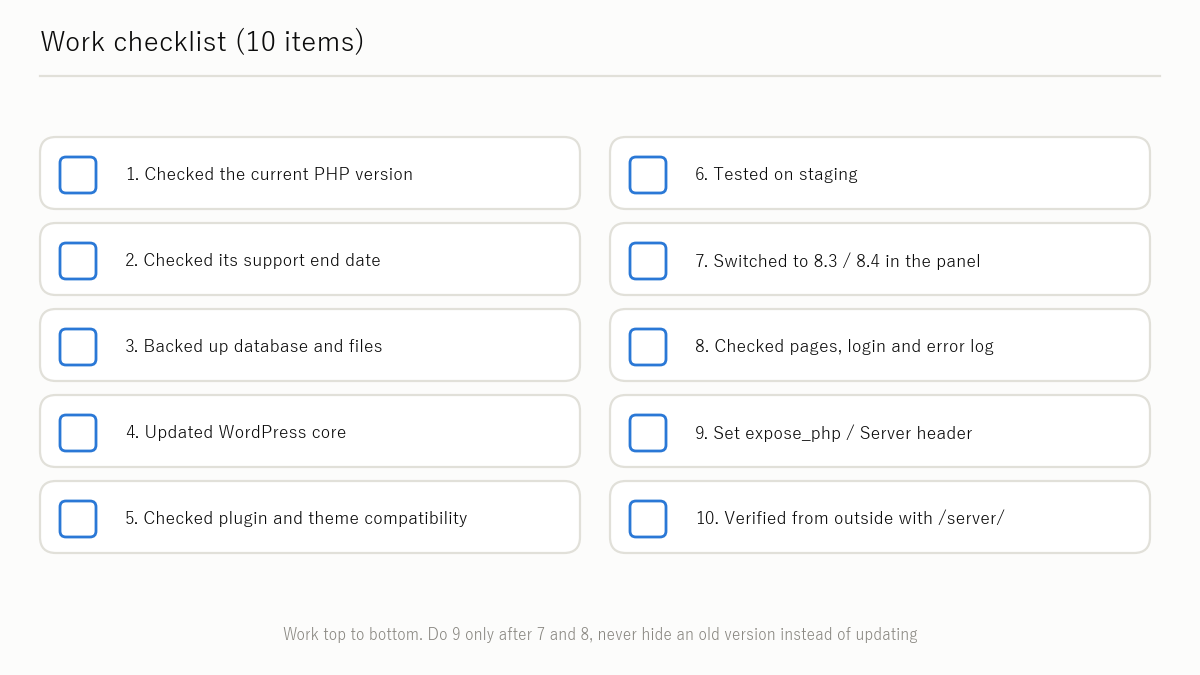
- [ ] Checked the current PHP version via the control panel, Site Health or
/server/ - [ ] Recognised that 8.1 and older are EOL, if applicable
- [ ] Noted the 2026-12-31 deadline, if on 8.2
- [ ] Took backups (database + files)
- [ ] Checked WordPress, theme and plugin compatibility
- [ ] Switched PHP to 8.3 or later (preferably 8.4 or 8.5; the latest stable version your host offers)
- [ ] Confirmed the version is at or above the fixed releases for CVE-2026-109618 / CVE-2026-109619 (8.2.35 / 8.3.36 / 8.4.27 / 8.5.12)
- [ ] Confirmed the site works and the error log is clean after switching
- [ ] Set
expose_php = Off/ServerTokens Prod/server_tokens off(after updating) - [ ] Confirmed with
/server/that no version information is visible from outside
Related articles
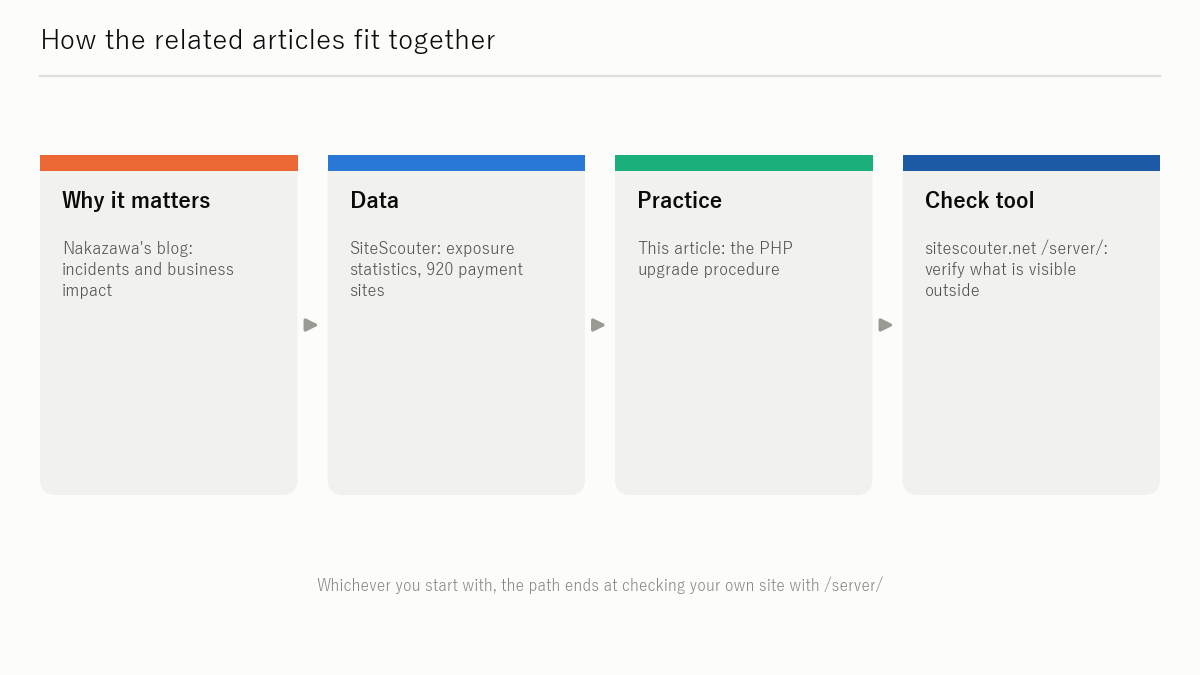
- A CVSS 9.8 PHP Vulnerability Was Published. Did the World Patch It? What 260,000 sites reveal about neglected servers — the state of Japanese sites' security seen through survey results (Yuki Nakazawa's blog)
- Security Exposure Survey 2026 Survey data and international comparison for 260,000 sites in Japan, the G7 and Asia (sitescouter.net)
- Server information check: sitescouter.net/en/server/ Enter a URL to see the server headers, PHP version and security settings visible from outside.
Support dates are based on php.net/supported-versions.php. Re-confirm the latest dates before publishing.
Before and after switching, check what PHP and server versions and security headers your site shows the outside world. Just enter a URL; no registration needed.
Use: Server information checkReferences
Last checked: 2026-10-28. Specifications and policies can change; check the primary sources before acting.
- PHP: Supported Versions (php.net)
- PHP: Runtime Configuration — expose_php (php.net)
- Apache HTTP Server: ServerTokens Directive
- nginx: server_tokens
- WordPress: Site Health
Yuki Nakazawa(personal blog nkzw.jp)
Contact: Official site / YouTube / Instagram / LinkedIn / X / Telegram